
A WordPress site may seem fine while hidden issues like outdated plugins, failed updates, server problems, or broken scheduled tasks grow. Ignoring these can cause bigger problems over time.
WordPress Site Health lets site owners quickly identify issues from the dashboard, but it doesn’t replace professional security or performance monitoring. It’s a fast tool for checking WordPress site maintenance.
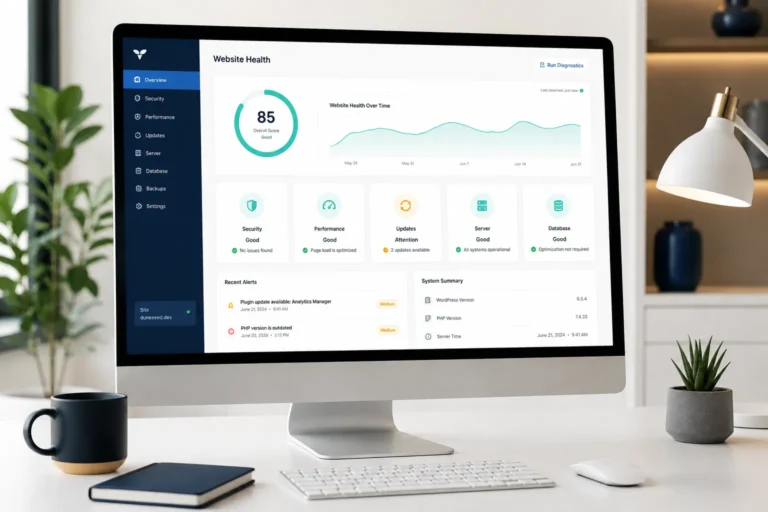
What Is WordPress Site Health?
WordPress Site Health has two main areas: Status identifies issues, and Info offers technical details about the installation, plugins, themes, server, database, media setup, and file permissions.
This makes Site Health especially useful because website owners don’t need to inspect dozens of configuration settings to identify potential problems manually.
It can act as an early-warning system for issues that may affect:
- website security
- WordPress updates
- plugin and theme maintenance
- scheduled tasks
- server configuration
- PHP compatibility
- HTTPS
- REST API functionality
- website administration
How to Check WordPress Site Health
Open your WordPress dashboard and navigate to Tools → Site Health. Start with the Status tab.
A useful workflow is:
- Address critical issues first.
- Review recommended improvements.
- Check whether the warning involves WordPress, a plugin, your theme, or the hosting environment.
- Make one significant change at a time.
- Recheck Site Health after making changes.
- Review the passed tests to understand what is already functioning correctly.
Important: Before modifying PHP settings, server configuration, or WordPress files, create a reliable backup.
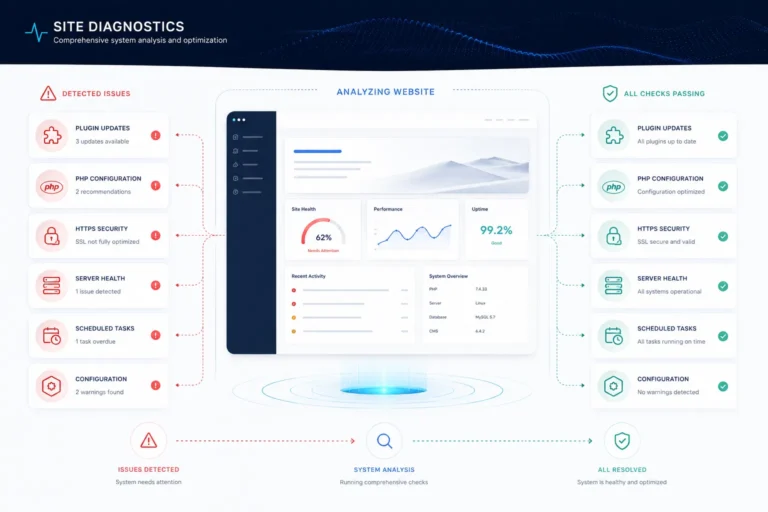
What Problems Can WordPress Site Health Detect?
The exact checks can evolve as WordPress develops, but the built-in Site Health system evaluates a wide range of technical conditions.
Outdated WordPress, Plugins, and Themes
Keeping software updated is vital for WordPress maintenance. Site Health spots issues with WordPress core, plugins, and themes versions and checks background update functionality.
An outdated plugin is not automatically evidence that a site has been compromised, but unnecessary or poorly maintained software can increase maintenance and security risk.
Inactive Plugins and Themes
The Info section displays both active and inactive plugins and themes. WordPress documentation recommends removing inactive themes that you do not intend to use.
The same principle applies to unnecessary plugins: each installed component needs maintenance. Before deleting, ensure it’s not needed for backups, staging, troubleshooting, or other operations.
PHP and Server Configuration
Site Health reveals key server info, including PHP status. WordPress detects outdated PHP, missing modules, active sessions, and other server issues.
Some of these problems cannot be corrected from WordPress itself. Hosting providers often control PHP extensions, execution limits, filesystem permissions, and server configuration.
Background Updates
WordPress’s background updates handle key maintenance, like security releases. Site Health checks their proper function, and failures warrant investigation, even if the site looks fine.
Scheduled Tasks and Loopback Requests
WordPress relies on scheduled processes for tasks. Problems with WP-Cron or loopback requests can impair features like publishing, updates, and plugins. Site Health tracks missed events and loopback issues.
This is a good example of a technical issue that may remain invisible until a specific automated feature stops working.
HTTPS and Search Visibility
Site Health also exposes configuration information that can have broader consequences. The Info screen shows whether the website uses HTTPS and whether WordPress has been configured to discourage search engines from indexing the site.
That second setting is especially worth checking after moving a website from staging to production. A technically functional website can still suffer organic visibility problems if search-engine indexing remains disabled.
Does Site Health Improve SEO?
WordPress Site Health is not an SEO tool, and a clean report doesn’t ensure high rankings. Technical issues can indirectly impact SEO. Fixing updates, plugins, HTTPS, and servers can strengthen SEO. For businesses, technical maintenance should therefore sit alongside:
- technical SEO audits
- Core Web Vitals analysis
- crawl and indexing checks
- content optimization
- structured data validation
- internal linking
- security monitoring
- regular backups. At Dune Seed, we see WordPress maintenance and technical SEO as interconnected parts of website optimization, not a single metric. More info at duneseed.com.

Common Mistakes When Using Site Health
A common mistake is assuming you must follow every recommendation without understanding its context, because WordPress configurations vary across hosting providers, caching, security plugins, development environments, and custom integrations that affect Site Health reports.
Another error is changing multiple server or plugin settings at once, which complicates troubleshooting subsequent issues.
A safer approach is to:
- back up the website first
- investigate the warning
- determine which component controls it
- make the smallest necessary change
- test the website
- recheck Site Health
Site Health should guide troubleshooting, not encourage random configuration changes.
How Often Should You Check WordPress Site Health?
For an actively managed business website, checking Site Health periodically and after important technical changes is a sensible maintenance habit.
It is particularly useful after:
- WordPress core updates
- major plugin updates
- theme changes
- PHP upgrades
- hosting migrations
- security incidents
- unexpected website errors
- installation of new plugins
The WordPress Site Health system also runs scheduled internal checks, but manually reviewing the dashboard gives website owners a chance to understand and act on the results.
WordPress Site Health Should Be a Starting Point
A website doesn’t need to appear broken before maintenance. WordPress Site Health reveals configuration issues often overlooked during management. Checking Status warnings, the Info panel, and early issues can prevent small problems from escalating.
Use it as one layer of a broader maintenance process, not a complete website audit. A strong WordPress strategy still requires backups, security controls, performance testing, SEO monitoring, and regular technical reviews.
Frequently Asked Questions
Is WordPress Site Health built into WordPress?
Yes. Site Health is a built-in WordPress feature available from Tools → Site Health in the administration dashboard. It provides diagnostic information about the site's configuration and technical environment.
Should I fix every WordPress Site Health warning?
Warnings should be investigated, but not every recommendation should be changed blindly. Some settings depend on your hosting environment, security configuration, plugins, or development requirements.
Can WordPress Site Health detect security problems?
It can identify several configuration conditions related to security, including update problems and certain server settings, but it is not a complete malware scanner or security monitoring platform.
Can WordPress Site Health help with a slow website?
It can expose technical conditions that may contribute to poor website operation, but dedicated performance testing is still necessary to diagnose page speed, Core Web Vitals, database bottlenecks, scripts, images, caching, and hosting performance.
What should I do if Site Health reports a server problem?
Read the warning first and identify the affected setting. If the problem involves PHP modules, filesystem permissions, server limits, or hosting configuration, you may need assistance from your hosting provider.